Build Custom AI Rewrite Hotkeys
Create your own AI shortcuts for the rewrites you actually do — "make professional," "soften tone," "shorten by half," "translate to Spanish," "summarize." Each one runs from a hotkey, with the exact prompt you wrote.
// features
Build custom AI rewrite hotkeys for tone changes, translations, shortening, summaries and clarifications. Highlight text in any app on Mac or Windows, press your hotkey, and Slashit transforms it instantly — no tab-switching, no copy-paste, no separate AI window.
Every time you want to polish an email, soften a Slack message, shorten a LinkedIn post or translate a reply, you do the same dance: copy the text, switch to ChatGPT, paste it, type the same prompt you've typed a hundred times, copy the result, switch back, paste it in. It adds friction to every piece of writing you do. Switching tabs to ChatGPT or Gemini for every small rewrite slows your day to a crawl. You retype the same prompts ("make this more professional," "shorten this") over and over. The copy-paste cycle breaks your flow inside Gmail, Slack, Notion or LinkedIn. Generic AI tools don't remember the rewrite styles you actually use most. And you can't standardize tone across your team because everyone's using AI differently.
One hotkey. Your AI prompt. Any text, any app — rewritten in seconds.
Create your own AI shortcuts for the rewrites you actually do — "make professional," "soften tone," "shorten by half," "translate to Spanish," "summarize." Each one runs from a hotkey, with the exact prompt you wrote.
Use ChatGPT for one Magical, Gemini for another. You aren't locked into a single model, so you can match the AI to the job — a fluent translator for one hotkey, a sharper editor for another.
Highlight text in Gmail, Slack, LinkedIn, Notion, Zendesk or any browser tab and press your hotkey. The rewrite happens in place — no copying, no switching to a chatbot tab, no losing your draft.
A support agent handling Spanish-speaking customers can set up /es to translate any reply to Spanish in one keystroke. No more pasting text into Google Translate and copying it back.
Share Magical hotkeys with teammates so everyone's "make professional" or "make friendly" uses the same approved prompt. Brand voice stays consistent even when 10 different people are writing.
Start a new Magical from the Magical tab in the left sidebar.
Give it a clear name like "Make Professional," "Shorten" or "Translate to Spanish." Write the AI instructions exactly the way you'd phrase a prompt — Slashit sends this to the AI every time you trigger it.
Choose any key combination (like Ctrl+Shift+P) and select the AI engine you want — ChatGPT, Gemini or your preferred model.
Your Magical is now active across every app on your computer — no integrations, no setup per app.
Slashit sends the selection to the AI with your saved prompt and replaces it with the rewritten version in place.
You're typing a quick Slack message to a client. The draft reads:
"hey sorry i cant make the meeting tomorrow gonna have to push it"
You highlight the sentence and press:
Magical name: "Make Professional" · AI Model: ChatGPT
Saved prompt: "Rewrite this message in a polished, professional tone suitable for a client email. Keep it concise."
Slashit calls ChatGPT in the background. About two seconds later, the highlighted text is replaced in place with:
"Hi — apologies, but I won't be able to make tomorrow's meeting. Could we reschedule? I'll send a few alternative times shortly."
No tabs opened. No prompt retyped. No copy-paste cycle.
| Without Slashit | With Slashit's Magical AI Rewriter |
|---|---|
| Copy → open ChatGPT tab → paste → type prompt → copy → paste back | Highlight text → press one hotkey → rewritten in place |
| Retyping "make this more professional" into ChatGPT every day | Save the prompt once as a Magical, never type it again |
| Switching tabs every time a support reply needs softening | Press /friendly inside Zendesk or Gmail directly |
| Pasting messages into Google Translate to reply in Spanish | Press /es and the reply translates in place |
| Inconsistent AI rewrites across the team | Shared Magical hotkeys keep prompts (and brand voice) identical |
| Drafting a LinkedIn post, then editing it manually for 10 minutes | Highlight, press /linkedin, post in under a minute |
“I built four Magical hotkeys — improve, shorten, translate to Spanish and summarize. I genuinely haven't opened ChatGPT in a browser tab in three months. The rewrite happens right inside Gmail or Slack.”
“English isn't my first language, so I used to paste every important email into ChatGPT first. Now I press one hotkey and the email gets polished where I'm writing it. It feels like a private editor over my shoulder.”
“My team set up a shared 'Make Professional' Magical with the exact prompt our brand voice guide calls for. Five sales reps, same tone across every email — without anyone having to remember the rules.”
Slashit runs at the operating system level on Mac and Windows, so your Magical AI hotkeys work in any browser tab or desktop app — without integrations, plugins or AI side panels to install.
Plus any other browser, CRM, helpdesk, doc editor or text field on your computer. Works with ChatGPT, Gemini and other supported AI models. Available on macOS and Windows.
Magical is a custom AI rewrite hotkey. You name it, write the AI prompt you want it to use, assign a hotkey and pick an AI model like ChatGPT or Gemini. Then highlight any text in any app, press the hotkey, and Slashit rewrites it in place using your saved prompt. It removes the entire copy-paste-prompt cycle from AI editing.
Magical supports multiple AI models including ChatGPT and Gemini, and you can pick a different model for each Magical hotkey. That means you can use one model for translation and another for tone changes, all from the same Slashit app.
Yes. Most users build a small library — typically a "make professional," "shorten," "translate," "summarize" and "soften tone" set. Each one has its own name, prompt, hotkey and AI model so you can match the right rewrite to the moment.
ChatGPT lives in a separate tab and forces you to copy, paste, type a prompt, then copy the result back. Magical runs your saved prompt against the highlighted text right inside the app you're already in. Same AI, none of the friction — and you never have to retype your prompts.
The Magical AI rewriter works through Slashit's setup, so you can get started without managing API keys yourself. Power users on paid plans can bring their own keys for higher-volume usage and direct control over which model and account is being used.
Yes. Magical runs at the operating system level on Mac and Windows, so it works inside Gmail, Slack, LinkedIn, Notion, Zendesk, HubSpot, Upwork and any other browser or desktop app. There's nothing to install per tool.
The free plan includes Magical so you can build and test your first AI rewrite hotkey without paying. Higher plans expand monthly AI usage, unlock team-shared Magicals, support multiple AI models and add the lifetime deal option.
Yes. On paid plans you can share Magicals across your team so every teammate's "make professional" or "shorten" uses the exact same prompt. This is how marketing teams, support teams and sales teams keep AI-edited output consistent with their brand voice.
Stop tab-hopping to ChatGPT every time you want to polish a sentence, shorten a post, change a tone or translate a reply. Build your own AI rewrite hotkeys in Slashit, write the prompts once, and run them against any text in any app — on Mac and Windows.
// keep reading
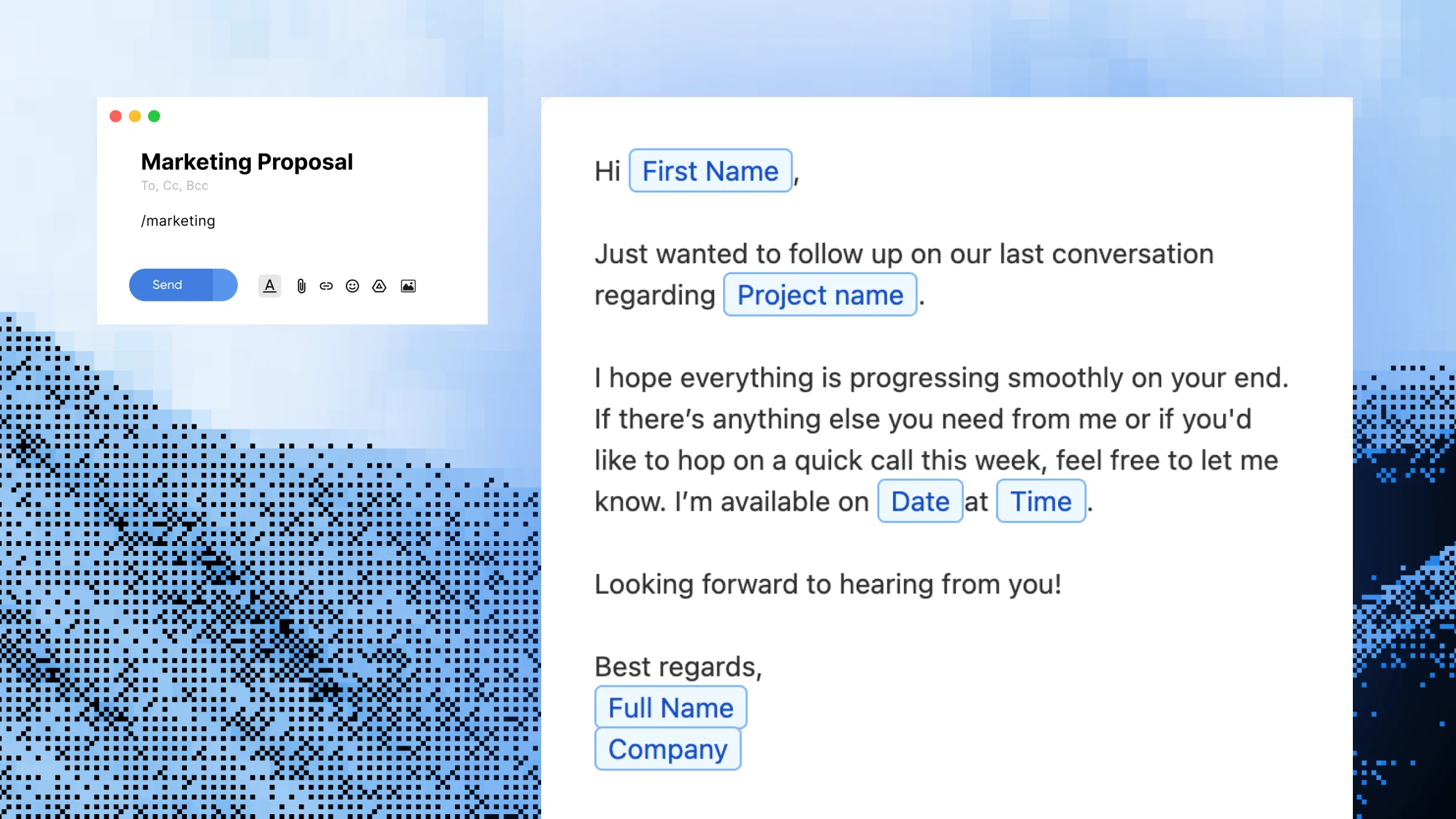 Dynamic Templates
Build reusable message templates with editable placeholders for names, dates, project types, and any other detail that changes. Built for support agents, sales reps, freelancers, marketers, and anyone who sends the same kind of message dozens of times a week.
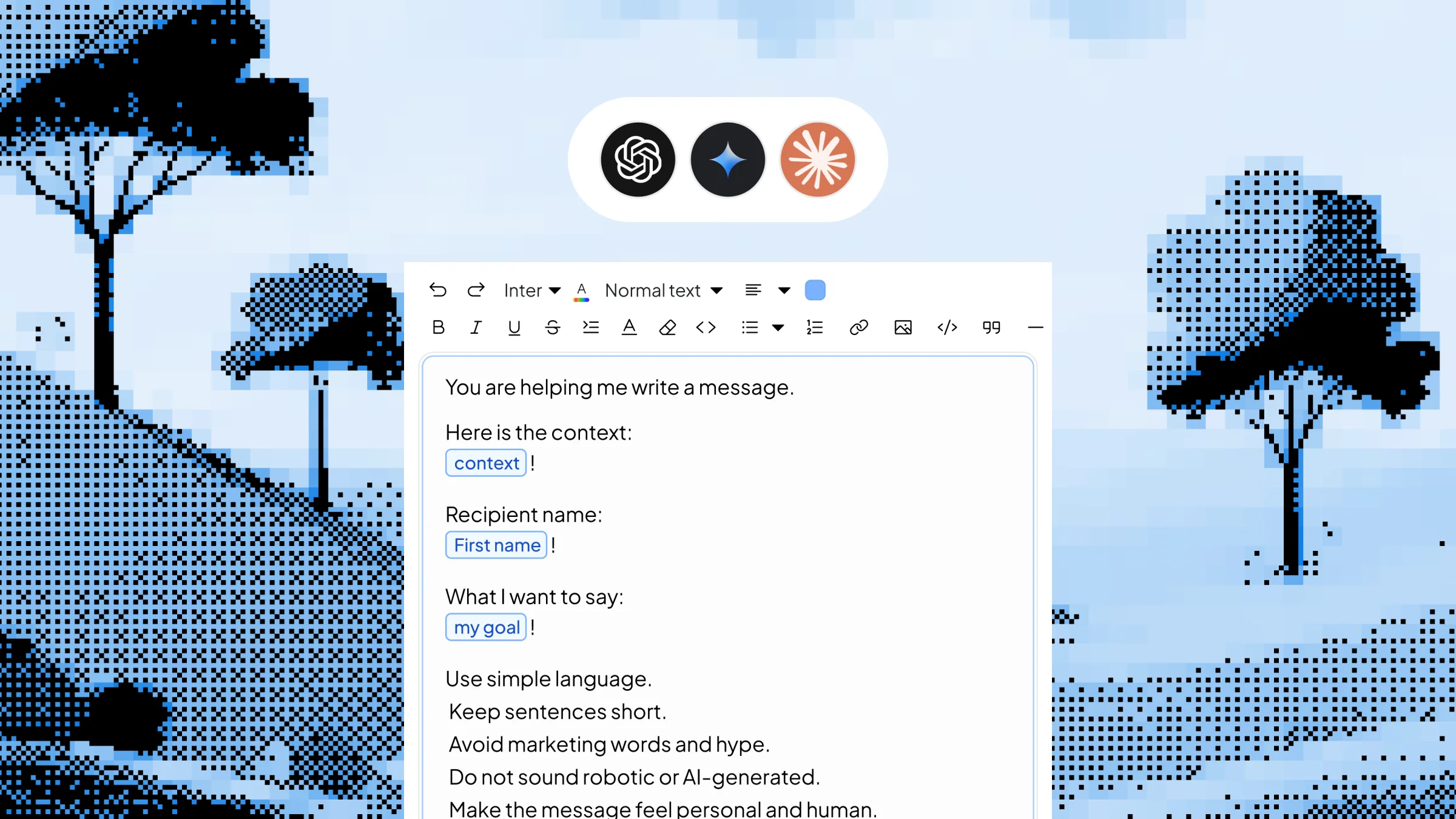 Dynamic Templates with AI
Save your best AI prompts as triggerable shortcuts with editable inputs. Type /linkedinpost, /coldemail or /summary, fill in the variable context in a quick popup, and Slashit generates the finished content using your chosen AI model — right where your cursor is, in any app on Mac or Windows.
 Snippet
Save your most-typed phrases, signatures, URLs, addresses, and canned replies as short triggers — then expand them in any app with a few keystrokes. Built for support agents, sales reps, freelancers, developers, and anyone tired of typing the same thing every day.