Automatic Capture of Every Copy
Slashit watches your copy actions in the background and saves every text, link and image to your history. You don't have to remember to save anything — if you copied it, it's there.
// features
Slashit automatically saves every text snippet, link and image you copy. Press your hotkey to browse, search and paste from your last hundred copies — across every app on Mac and Windows. Built for anyone who's ever lost something to the standard "one-item" clipboard.
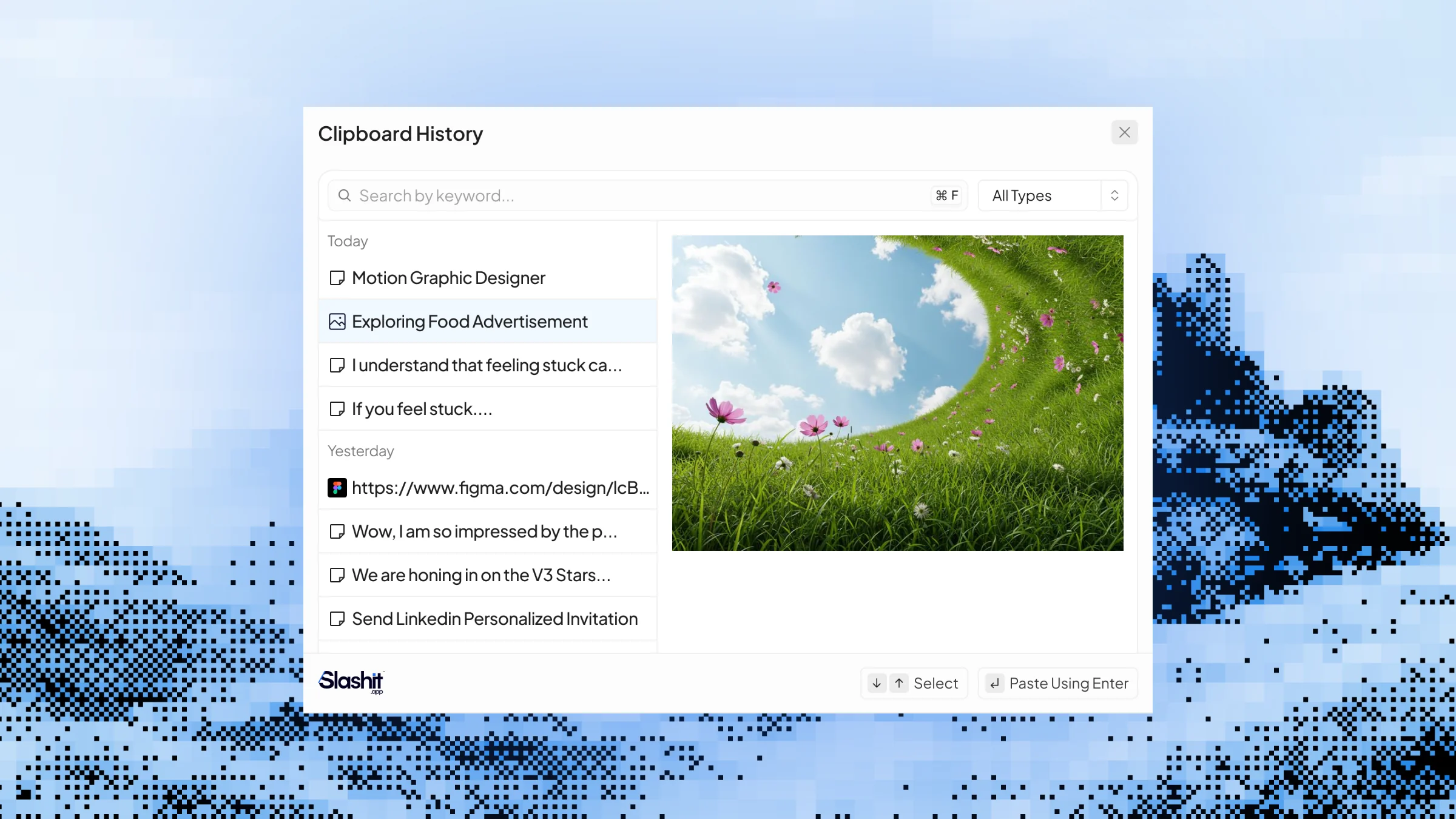
The native clipboard on Mac and Windows holds exactly one item. Copy something new, and whatever you had before is gone forever.
The link you copied two minutes ago. The paragraph you needed for two different docs. The address you keep pasting all afternoon. The macOS and Windows clipboards only hold one item, so copying something new erases the previous copy. You copy a link, then copy something else, then realize you needed the first one. You re-copy the same URL three times a day because the clipboard keeps getting overwritten. That perfect paragraph you copied from a long article? Gone the second you copied a phone number. Lost code snippets, screenshots, addresses and quotes that you "had a second ago."
Every copy, saved automatically. Browse your history with one hotkey. Paste anything, anywhere.
Slashit watches your copy actions in the background and saves every text, link and image to your history. You don't have to remember to save anything — if you copied it, it's there.
Your history is fully searchable. A developer who copies 50 URLs, error messages and code snippets a day can type a fragment to find the exact one they need instead of scrolling through dozens of items.
Snippets of writing, full URLs, email addresses, paragraph quotes from articles, screenshots — Slashit stores them all. A researcher pulling quotes from five sources can copy each one and paste them into a doc in order, without losing any.
Whatever you pull from Clipboard History pastes into the app your cursor is in. Gmail, Slack, Notion, LinkedIn, your CRM, a code editor, a Google Doc — it all just works, no integrations required.
Copied something important, then copied something else, then realized you needed the first one? Press your hotkey, click the older item, paste. The "one-item clipboard" problem doesn't apply to you anymore.
Clipboard History is on by default. There's nothing to configure for the basic flow.
Use Ctrl+C or Cmd+C as you always do. Slashit silently saves each copy to your history in the background.
The default is Cmd+1 on Mac or Ctrl+1 on Windows. Your full copy history opens in a clean list.
Browse or search the list, click the item you want, and Slashit pastes it where your cursor is.
Click your profile icon → Settings → Shortcut tab → "Open Clipboard" → set the key combo you prefer → Update changes.
You're processing a customer support ticket. In quick succession, you copy three things: a Stripe refund link from your billing dashboard, the customer's order confirmation number from a previous email, and a shipping tracking number from the carrier's site. Now you're back in Zendesk, drafting your reply. You go to paste the Stripe link — but your clipboard only has the tracking number, the last thing you copied. Without Slashit, that means switching tabs, finding the Stripe link, re-copying it.
With Slashit, you press:
Your full clipboard history opens:
Tracking number
1Z999AA10123456784
Order #
18472-3
Stripe refund link
https://dashboard.stripe.com/refund/re_3OoX...
You click the Stripe refund link. It pastes into your Zendesk reply. Then Cmd+1 again, pick the tracking number, paste. Then Cmd+1, pick the order number, paste.
Three pieces of context, three keystrokes — no tab-switching, no re-copying.
| Without Slashit | With Slashit's Clipboard History |
|---|---|
| The clipboard holds exactly one item — every new copy erases the last | Every copy is saved automatically and stays accessible |
| Switching tabs to re-copy a URL you already copied earlier | Press the hotkey, pick the URL from your history, paste |
| Lost paragraphs and quotes when you copy something else | All your text copies remain searchable in one list |
| Re-screenshotting an image because you copied something after it | Images stay in clipboard history alongside text and links |
| Manually saving "important" copies into Notes or a doc as backup | Slashit captures every copy without you doing anything |
| Hotkey doesn't match your muscle memory | Customize the shortcut in Settings → Shortcut tab |
“I copy 40–50 URLs, error messages and code snippets a day. Slashit's clipboard history is the difference between flow and constant re-copying. I can pull up any link from earlier in my day in one keystroke.”
“As a writer, I pull quotes from five or six sources for every article. Before Slashit, I'd lose one of them every time I copied something new. Now they're all just sitting in my clipboard history when I need them.”
“I'm a recruiter — names, links and LinkedIn URLs all day. Clipboard History keeps everything I've copied in front of me. I haven't lost a candidate link to an accidental re-copy in months.”
Slashit runs at the operating system level on Mac and Windows, so your clipboard history pastes into any browser tab or desktop app — without integrations, plugins or per-tool setup.
Plus any other browser, CRM, helpdesk, code editor, design tool or text field on your computer. Available on macOS and Windows.
Clipboard History is an automatic, searchable archive of every text, link and image you copy. Every Ctrl+C or Cmd+C gets saved to a history list you can open with one hotkey, so you can paste anything you've copied recently — not just the last item. It works across every app on Mac and Windows.
Slashit keeps a deep history of your recent copies so you can scroll or search back through your day. The free plan covers everyday clipboard needs, and paid plans extend retention and unlock pinning, organization and team-shared snippets.
The default hotkey is Cmd+1 on Mac and Ctrl+1 on Windows. You can change it anytime — click your profile icon, go to Settings, open the Shortcut tab, click the "Open Clipboard" row, set your preferred combo and hit Update changes.
All three. Text, links and images you copy are saved to your clipboard history and can be pasted into any app that accepts that kind of content. Designers, marketers and support agents use this most for screenshots and asset URLs.
Your clipboard history lives on your machine. You can clear individual items or wipe the entire history from inside Slashit at any time. As a privacy practice, avoid copying highly sensitive items like passwords with clipboard history enabled, or clear them after use.
Yes. Clipboard History is part of the free plan so anyone can stop losing copies without paying. Higher plans extend history retention, add pinning and organization features and unlock the lifetime deal option.
Yes. Clipboard History is available on macOS and Windows. The default hotkey adjusts per platform (Cmd+1 on Mac, Ctrl+1 on Windows), and you can customize it on either.
The built-in clipboard only holds one item — copying something new erases the previous one. Slashit's Clipboard History saves every copy automatically, lets you search through it, supports text, links and images, and works system-wide across every app on your computer.
Stop losing the link you copied two minutes ago. Stop re-copying the same URL three times a day. Stop watching paragraphs disappear when you copy a phone number. Slashit captures every text, link and image you copy and keeps them one hotkey away — across every app on Mac and Windows.
// keep reading
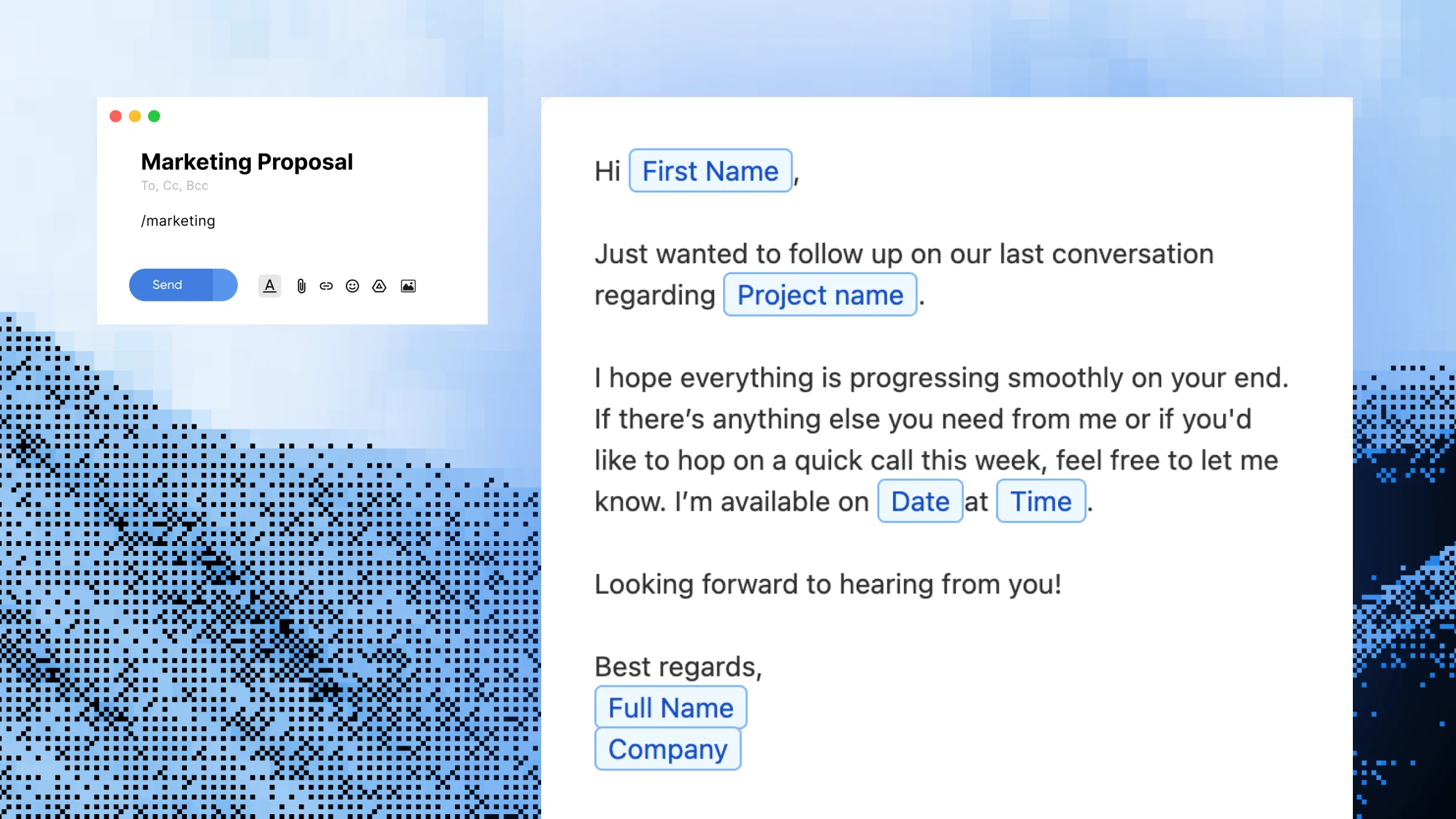 Dynamic Templates
Build reusable message templates with editable placeholders for names, dates, project types, and any other detail that changes. Built for support agents, sales reps, freelancers, marketers, and anyone who sends the same kind of message dozens of times a week.
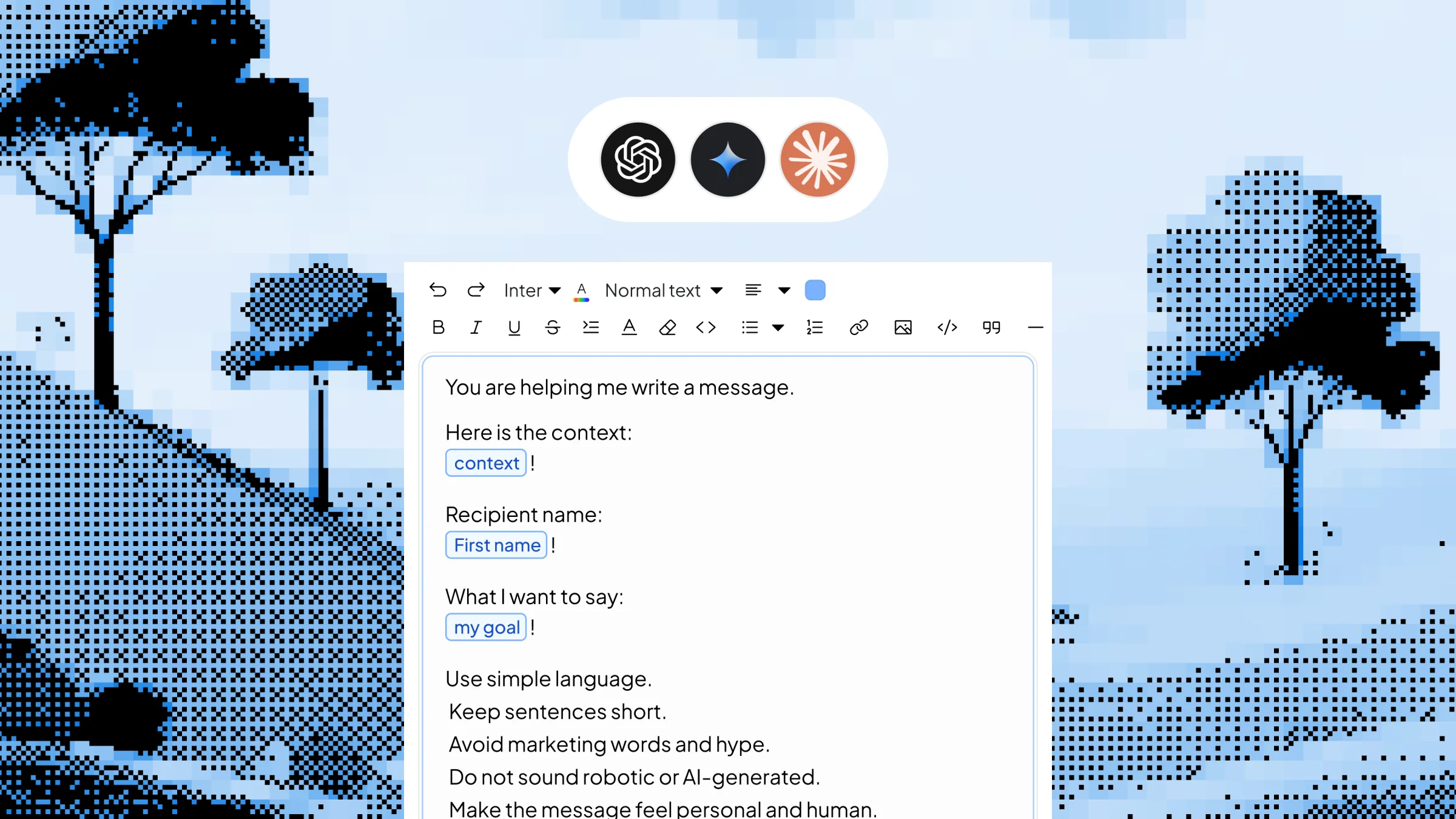 Dynamic Templates with AI
Save your best AI prompts as triggerable shortcuts with editable inputs. Type /linkedinpost, /coldemail or /summary, fill in the variable context in a quick popup, and Slashit generates the finished content using your chosen AI model — right where your cursor is, in any app on Mac or Windows.
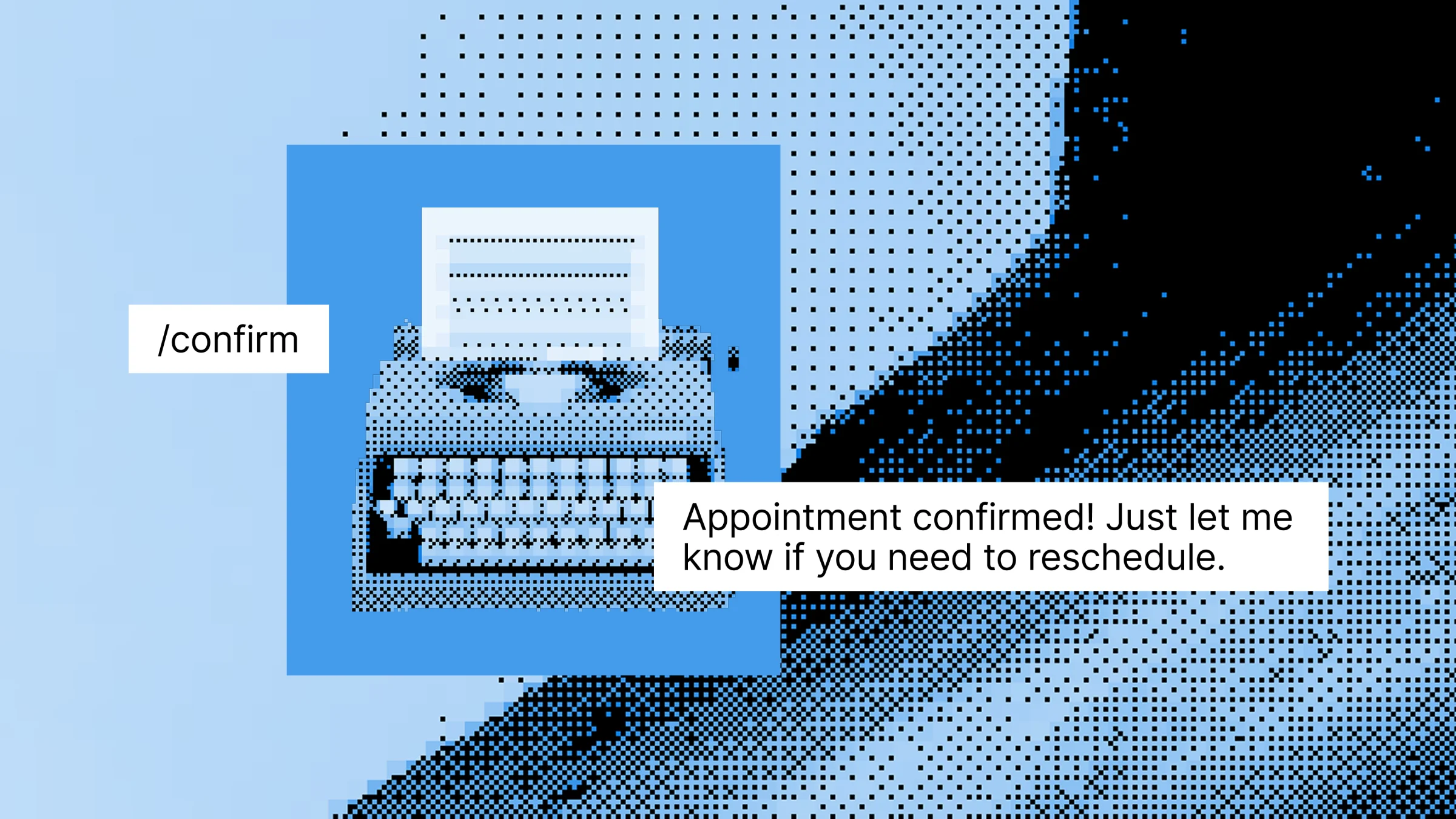 Snippet
Save your most-typed phrases, signatures, URLs, addresses, and canned replies as short triggers — then expand them in any app with a few keystrokes. Built for support agents, sales reps, freelancers, developers, and anyone tired of typing the same thing every day.